Light & Exposure
How to Read a Histogram in Photography
Learn how to read a histogram in photography to nail exposure every time, even when your camera's rear screen lies to you.
Your camera's rear screen looks great in a dimly lit café, then you get home, open the photo on your monitor, and everything is blown-out white or muddy grey. The histogram is the tool that would have caught that problem on the spot. Once you understand what it's showing you, you'll trust it far more than that glowing screen on the back of your camera.
What the Histogram Actually Shows
An image histogram is a simple bar graph. The left edge represents pure black (the darkest possible tone), and the right edge represents pure white (the brightest possible tone). Everything in between is a shade of grey or a mid-brightness colour. The height of the graph at any point tells you how many pixels in your image fall at that brightness level.
That's it. There's no colour information here, no focus data, just a map of where your tones are sitting across the brightness spectrum.
Most cameras show the histogram on the info or playback screen. You can usually turn on a live histogram in your viewfinder or on the rear display while shooting. Do that. It changes how you work.
How to Spot a Problem: Clipping
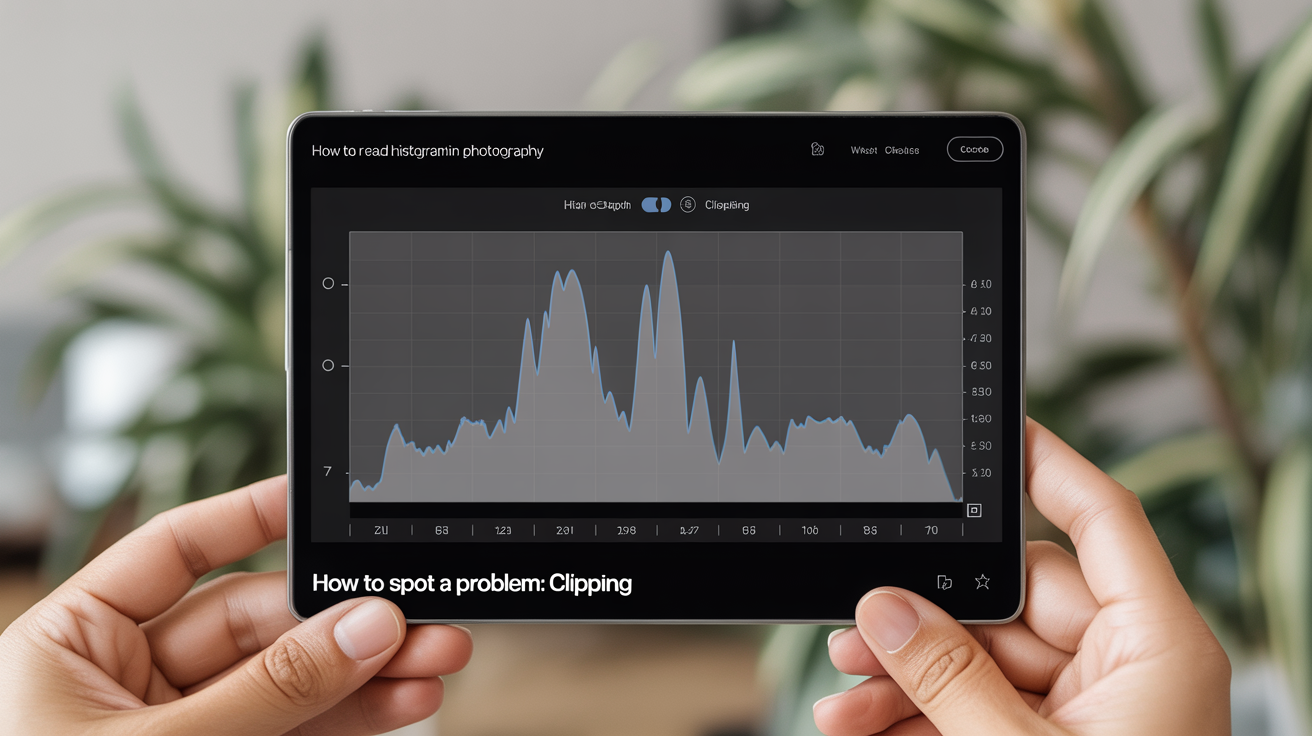
The most useful thing to look for is whether the graph is being cut off at the edges. Photographers call this clipping.
Highlight clipping happens when the graph slams hard into the right wall. Pixels are so bright that your camera recorded no detail at all. Those areas print as solid white and cannot be recovered in editing, no matter how good your software is. Think of a bright window blown to blank white, or a pale sky with no cloud texture.
Shadow clipping is the mirror image. The graph crashes into the left wall, and those areas are pure black with zero detail. Sometimes that's fine (a black leather jacket is supposed to be dark), but clipped shadows on a person's face look muddy and unsettling.
A small amount of clipping on one side is often acceptable, but large spikes at either wall are a warning sign worth fixing before you press the shutter again.
What "No Perfect Shape" Actually Means
New photographers often search online for a "correct" histogram shape. There isn't one. The right shape depends entirely on what you are photographing.
| Scene type | Likely histogram shape | What it means |
|---|---|---|
| Dark moody portrait | Heap of tones on the left | Normal for low-key lighting |
| Snow or white sand | Heap of tones on the right | Normal for a bright, light scene |
| High-contrast landscape | Spread across the full range | Wide tonal range, check for clipping at edges |
| Foggy morning | Narrow peak in the middle | Low contrast, mostly mid-grey tones |
| Mixed indoor/window light | Two humps, one each side | Common when part of the scene is much brighter |
A histogram that shows a spike hammered against the right wall is a problem. A histogram where all the tones sit comfortably to the right of centre, without touching the wall, might be exactly right for a snowy scene. Context matters.
Reading Shadows, Midtones, and Highlights
Divide the histogram into rough thirds in your mind.
The left third covers the shadows. Tones here are dark but still have detail, as long as the graph doesn't slam the wall. Deep shadows with texture live here.
The middle third covers midtones. This is where most skin tones, green grass, and "ordinary" daylight colours sit. A portrait in soft, even light will often show the biggest heap of tones somewhere in this zone.
The right third covers highlights. Bright skies, specular reflections, and any very light surfaces land here. You want information in this zone, not a spike that's been cut off.
When you're learning to balance a scene, checking each zone helps you ask: "Am I losing the shadows in the doorway? Is that white shirt clipped?" The histogram answers both questions at once.
The Blinkies: Highlight Alert
Many cameras have a feature called highlight alert (sometimes nicknamed "blinkies" by photographers). When you play back a photo, any overexposed, clipped highlight will flash on and off on the rear screen. It's the camera's way of saying "these pixels have no information."
Turn this feature on and leave it on. Blinkies show you the exact location of the problem in the frame, while the histogram shows you the severity. Used together, they are faster than squinting at a small screen and guessing.
Shooting in bright midday sun makes highlight clipping especially common. For strategies to handle those conditions, see How to Take Photos in Harsh Midday Sun.
Why the Rear Screen Lies
The rear LCD on your camera is calibrated to look good, not to be accurate. It adjusts its own brightness based on the ambient light around you. Shoot outside on a sunny day and the screen dims automatically, making an overexposed photo look perfectly fine. Step into a dark hallway and the screen brightens, making a properly exposed shot look dark and concerning.
The histogram does not care about ambient light. It reads the actual pixel data. A histogram showing highlight clipping means your photo is overexposed, full stop, regardless of how pleasant the image looks on the screen at that moment.
This is especially important during the golden hour, when warm, low-angle light can trick your screen into looking gorgeous while actually blowing out the sky behind your subject.
Exposing to the Right (Without Overdoing It)
You may come across a technique called "expose to the right" (sometimes abbreviated ETTR). The idea is that the right side of the histogram, near the bright highlights, contains the most data in a raw file. A slightly brighter exposure captures more tonal information in the shadows and midtones, and reduces digital noise.
The practical version for beginners: if your histogram shows most of your tones clustered in the middle or left, and the right side is largely empty, you can often increase your exposure by a stop or so. You get a brighter raw file with more information to work with. The key word is "often." You still must not clip the highlights.
A good habit: push exposure up until the brightest important tones sit close to the right wall without touching it. That is a well-exposed file. For window-light portraits, where you are balancing a bright window against a darker interior, this kind of careful reading of the histogram is especially useful. See Window Light: Indoor Natural Light Photography for how the approach plays out in a real shooting situation.
A Quick Workflow for Using the Histogram While Shooting
- Take a test shot.
- Play it back and pull up the histogram.
- Check for spikes at either wall.
- If the right wall is being clipped, reduce exposure (smaller aperture, faster shutter, lower ISO).
- If the graph is bunched up on the left with a lot of empty space on the right, increase exposure.
- Shoot again and repeat.
After a few sessions this becomes instinctive. You stop second-guessing your rear screen and start reading the data directly.
Frequently Asked Questions
Do I need to keep the histogram perfectly centred?
No. A centred histogram would mean a mid-grey, evenly lit scene. Most photographs are not that. Dark scenes, bright scenes, and contrasty scenes all produce asymmetric histograms, and that's correct. Look for clipping, not for a particular shape.
What does it mean if my histogram shows a spike at the very right edge?
It means some pixels are pure white with no detail (blown-out highlights). Whether that matters depends on what those pixels are. A tiny spike from a specular reflection on a metal cup is probably fine. A large spike from a bright sky or a person's face is worth fixing.
Can I fix a clipped highlight in editing?
Not if it is truly clipped. Once a pixel is recorded as pure white, the data is gone. No editing software can recover it because there's nothing to recover. This is why catching clipping in-camera is so important. Slightly bright (but not clipped) highlights can often be pulled back in a raw editor with no problem.
What's the difference between the regular histogram and the RGB histogram?
A standard histogram shows overall brightness. An RGB histogram shows three separate graphs, one for each colour channel (red, green, blue). A highlight can clip in just one channel (say, the red channel in a very saturated red flower) while looking fine on the combined histogram. As a beginner, the standard histogram is enough. The RGB histogram is a useful next step once you're comfortable with the basics.
Where do I turn the histogram on?
This varies by camera brand and model. On most cameras, press the Info or Display button while in playback mode to cycle through different information overlays until you see the histogram appear alongside your photo. For a live histogram while shooting, check your camera's menu under display settings or shooting settings. Your camera manual will show the exact path.