Editing
The Best Free Photo Editing Software for Beginners
A plain-English guide to free photo editing software for beginners: what each type does, how to choose, and how to start editing your photos.
Good news: you do not need to spend money on editing software to make your photos look better. There is a range of capable free tools available, covering everything from quick mobile fixes to detailed desktop RAW processing. The right choice depends on what you shoot, what device you use, and how deep you want to go.
This guide explains the main categories of free photo editing software, what each one is suited for, and how to think about choosing between them.
At a Glance
- Free editors fall into five categories: RAW processors, browser-based tools, mobile apps, pixel/layer editors, and specialized single-purpose tools.
- If you shoot RAW, verify the software actually supports your camera's specific RAW format before committing to it; support lags for brand-new camera models.
- GIMP (a free, open-source pixel editor) and darktable (a free, open-source non-destructive RAW workflow tool) are two of the most capable no-cost options and both publish full documentation.
- Work in this order: exposure first, then highlights and shadows, then white balance, then contrast, then color, then sharpening and noise reduction last.
- Non-destructive editors save your adjustments separately from the original file, so you can undo everything at any point; pixel editors bake changes into the file when you save.
- Pick one tool and practice on five photos rather than downloading several tools and feeling overwhelmed.
What Free Photo Editing Software Actually Does
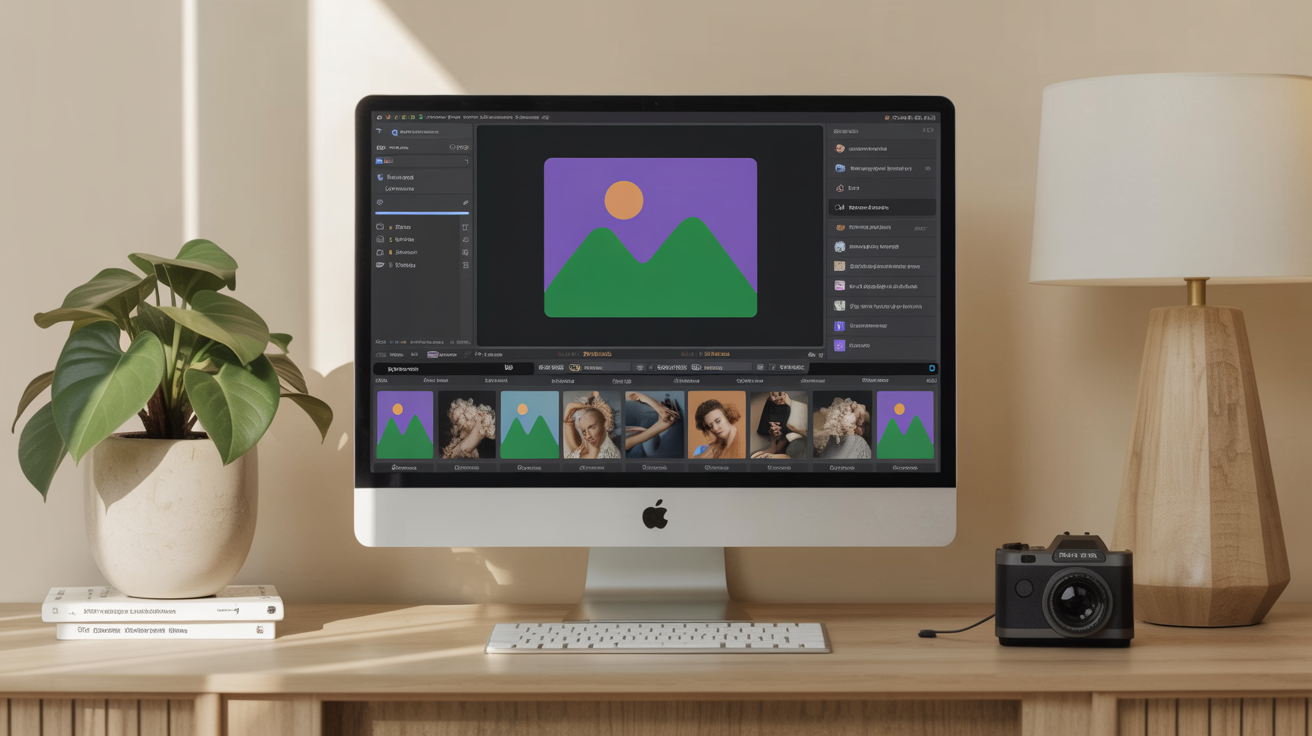
Before downloading anything, it helps to understand what editing software is doing to your image file.
At the basic level, editing tools let you adjust exposure (overall brightness), contrast, white balance (color temperature), highlights and shadows, and color saturation. Most free options handle these well.
At the more advanced level, some tools open RAW files. A RAW file contains unprocessed sensor data straight from your camera rather than the fully rendered image a JPEG gives you. RAW files typically hold 12 to 14 bits of tonal information per channel, versus roughly 8 bits in a standard JPEG, which is a meaningfully larger range to recover detail from when you push exposure or white balance around, as the format's technical documentation explains. If your camera offers a RAW shooting option, the software you choose matters more. If you shoot only JPEG, almost any free editor will do the job. (For more on this decision, see which format to shoot.)
The two broad categories you will encounter are:
- Non-destructive editors that save adjustments as a separate set of instructions, leaving your original file untouched. You can always undo everything.
- Pixel editors that apply changes directly to the image data. Saving overwrites the file (though most have undo history within a session).
For photo work, non-destructive tools are generally easier and safer to use while learning.
Categories of Free Photo Editing Software
Free editors fall into a few distinct types. Here is a comparison of what you can expect from each:
| Category | Typical strengths | Common limitations | Good for |
|---|---|---|---|
| RAW processors with full adjustment controls | Exposure, color, lens correction, local masking, batch edits, non-destructive workflow | Can feel complex; steeper learning curve | Shooters who want a Lightroom-style workflow at no cost |
| Browser-based editors | Accessible on any device, no install needed, familiar slider-based controls | Limited RAW support; privacy considerations for uploading files | Quick fixes on a laptop or borrowed computer |
| Mobile apps | Convenience, touch-friendly sliders, one-tap presets | Screen size limits precision; syncing to desktop varies | Editing phone photos or making quick decisions on the go |
| Pixel/layer editors | Retouching, compositing, text overlays, fine control over individual pixels | Not non-destructive by default; RAW support varies by tool | Removing objects, combining images, graphic work alongside photos |
| Specialized tools | Deep focus in one area (e.g., noise reduction, panorama stitching, HDR merging) | Not general-purpose | Solving specific problems in your workflow |
No single category wins for every use case. Many photographers end up using two tools: one for RAW processing and color work, another for occasional retouching.
Two Solid Free Options, Compared
Two names come up constantly in "free Lightroom alternative" searches, and they are not actually competing for the same job. It helps to see them side by side.
| GIMP | darktable | |
|---|---|---|
| Primary purpose | Pixel-level image editing and retouching | RAW photo processing and workflow management |
| Editing style | Destructive by default (with layers and history) | Fully non-destructive; original file is never altered |
| RAW support | Limited, generally via plugins | Core feature; built specifically for RAW development |
| Best for | Compositing, object removal, text, graphic work | Exposure, color grading, batch processing a shoot |
| License | Free and open source (GNU GPL) | Free and open source (GNU GPL v3) |
| Learning curve | Moderate to steep | Moderate |
A common workflow: process and grade your RAW files in darktable first, then hand off individual images to GIMP only when you need to remove an object or add text. Using them in the reverse order usually means redoing work.
How to Choose the Right Free Editor
Ask yourself these four questions before installing anything:
1. Do you shoot RAW or JPEG?
If you shoot RAW, you need a tool that can open your camera's specific RAW format (.CR3, .ARW, .NEF, etc.). Not every free editor supports every camera's RAW format, especially newer models. Check the software's supported camera list before committing to it.
If you shoot JPEG, nearly every free tool will work fine.
2. Desktop or mobile?
Desktop software generally offers more precision and a larger workspace. Mobile apps are faster to reach when you want to edit a phone photo immediately. Some tools offer both.
3. How much control do you want?
If you want a simple set of sliders to brighten, warm, and sharpen a photo, a basic browser or mobile tool is enough. If you want to target specific tones, apply masks to brighten only the sky, or correct lens distortion, you need a more capable desktop editor.
4. Will you edit many photos at once?
Some workflows involve coming home from a shoot with 200 photos and working through them methodically. Batch editing (applying the same adjustments to multiple files at once) is a feature of more capable desktop tools. Basic editors handle one photo at a time.
For a step-by-step look at building an editing habit once you choose your software, see a simple photo editing workflow for beginners.
Getting Started: A Basic Editing Process
Regardless of which tool you use, the sequence of adjustments is roughly the same. Here is a sensible order to work through:
- Start with exposure. Is the photo too bright or too dark overall? Fix this first, because other adjustments become harder to judge when the exposure is off.
- Adjust highlights and shadows. Recover blown-out bright areas by pulling highlights down. Open up dark areas by lifting shadows.
- Set white balance. Does the photo look too orange (warm) or too blue (cool)? A white balance adjustment corrects this. Most editors have an "auto" option that does a reasonable job.
- Adjust contrast. A modest contrast boost often makes a flat-looking photo feel more present.
- Refine color. Saturation increases the intensity of all colors. Vibrance (available in some tools) targets muted colors more selectively, which usually looks more natural.
- Sharpen and reduce noise. Apply these last. Sharpening makes edges crisper; noise reduction smooths out grain from high-ISO shots.
A useful discipline for beginners: make each adjustment small enough that you would not notice it in isolation, then check the cumulative effect at the end. Six small nudges usually look more natural than two aggressive ones.
For a deeper look at the two most common issues beginners fix in editing, see how to fix exposure and white balance in editing.
Free Lightroom Alternatives: What to Expect
Adobe Lightroom is a paid subscription product, but "free Lightroom alternatives" is a common search because people want its core capabilities: non-destructive RAW processing, an organized library, presets, and color grading tools. Several free desktop programs, including darktable, cover most of this ground.
When comparing free Lightroom alternatives, look for:
- Non-destructive editing (your original file stays intact)
- Support for your camera's RAW format
- Histogram display (a visual graph of tones that helps you judge exposure without guessing)
- Local adjustment tools (the ability to brighten or darken just part of a photo)
- Export controls (ability to resize and set quality when saving for web or print)
None of the free options have the exact same interface as Lightroom, so there is always a small learning curve when switching. That said, the underlying concepts transfer completely: the same adjustments exist, just in different places.
How to Practice Without Wasting Time
The biggest mistake beginners make with editing software is downloading several tools and feeling overwhelmed. Pick one, and spend a week editing photos you have already taken. Here is a focused practice approach:
- Open five photos you are not happy with.
- Identify one specific problem in each (too dark, too warm, too flat).
- Fix only that problem. Resist adjusting everything at once.
- Compare before and after by toggling the adjustment off and on.
- Export a copy and look at it in a separate image viewer, not the editing software.
This single-problem-per-photo approach builds intuition faster than trying to apply a full edit to every image.
Frequently Asked Questions
Can I edit RAW files without paying for software?
Yes. Several free desktop applications support RAW processing, including tools from camera manufacturers themselves (Canon Digital Photo Professional, Nikon NX Studio) which are free and fully support their respective RAW formats, as well as dedicated open-source options like darktable. Third-party free options also support many camera brands. Always check whether your specific camera model and RAW format is listed in the software's documentation.
Is browser-based editing safe for my photos?
Browser-based editors vary in how they handle your files. Some process everything locally in your browser and never upload to a server. Others require you to upload your photo to their servers for processing. If you are working with personal or sensitive images, check the tool's privacy policy before using it. For purely technical photo fixes, local processing tools are generally a safer choice.
What does "non-destructive editing" actually mean?
It means the software saves your editing decisions separately from the image file. Your original photo is never changed. When you open the photo again, the software re-applies your stored adjustments. You can remove any adjustment at any point. In contrast, if you open a JPEG in a pixel editor, apply changes, and save it, those changes are baked in permanently.
Do I need to learn all the sliders and tools before I start?
No. Start with exposure, white balance, and contrast. Those three adjustments fix the majority of common beginner photo problems. Add other tools gradually as you notice specific things you want to change that those three do not address.
Will free editing software make my photos look "edited"?
Only if you push the sliders too far. The goal in basic editing is to make a photo look like the scene actually appeared to your eyes, which cameras often fail to capture accurately on their own. Small, careful adjustments usually make photos look more natural, not more processed. Heavy saturation boosts and extreme contrast are the adjustments most likely to produce an obvious "filtered" look.
Is GIMP a good replacement for darktable, or do I need both?
They solve different problems. GIMP excels at pixel-level work: removing an unwanted object, adding text, combining multiple images. darktable excels at processing a whole shoot's worth of RAW files with consistent exposure and color. Many photographers use darktable for 90 percent of their editing and only open GIMP for the occasional photo that needs retouching.